How to Calculate Overtime and Pay in Excel Using the IF Function
You might be the type of person who prefers to avoid specialised tools in favour of manual calculations to find your overtime earnings. Also, many organisations still rely on Excel spreadsheets for their payroll tasks. If that sounds like you, here is exactly how to calculate overtime and pay in Excel by using the IF function.
To calculate overtime hours, overtime pay, and total pay in Excel, we need to use a few specific formulas. Before diving into the calculations, we must keep certain rules in mind regarding overtime and pay rates.
For example, when dealing with a US-based employee, overtime is typically defined as any time worked beyond 8 hours in a day or 40 hours in a week. In these cases, the standard multiplier is 1.5x (time and a half), though this can vary depending on the specific scenario.
Things To Do First
Before you begin your calculations in Excel, you must collect four essential pieces of information for each employee:
- Check-in Time
- Check-out Time
- Break Time
- Base Hourly Pay
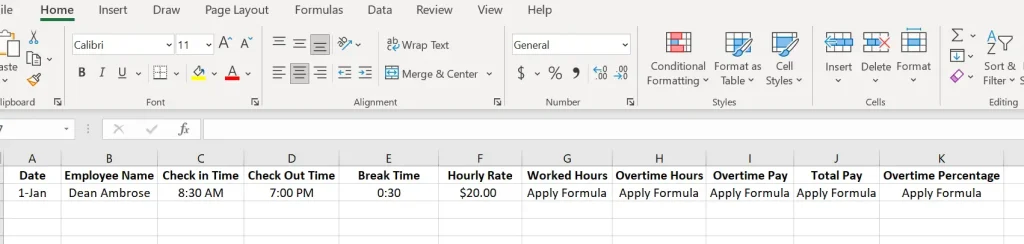
Organise this data into an Excel sheet, and ensure you include the Employee Name and Date to maintain professional records. Your setup should look like this:
Calculate Total Worked Hours in Excel
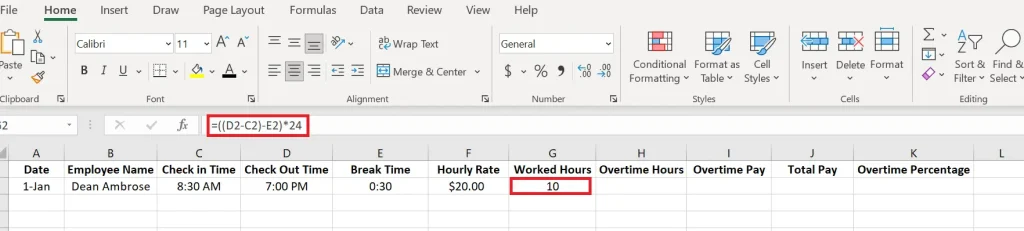
To calculate the total number of hours worked in a day, use this formula: =((D2-C2)-E2)*24. Simply paste this into the Worked Hours section to see the magic happen! It will automatically calculate your total working hours.
Calculate Overtime Hours in Excel
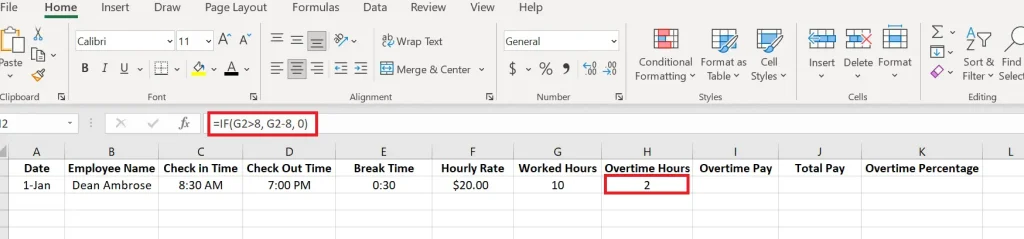
To calculate the total number of overtime hours worked in a day, use the following formula: =IF(G2>8, G2-8, 0). Simply enter this into the Overtime Hours column to get instant results.
Calculate Overtime Pay in Excel
Before calculating overtime pay in Excel, you must know the specific pay rate provided by your organisation. Here’s an explanation with different pay rates:
Calculating Time And a Half (1.5x) in Excel
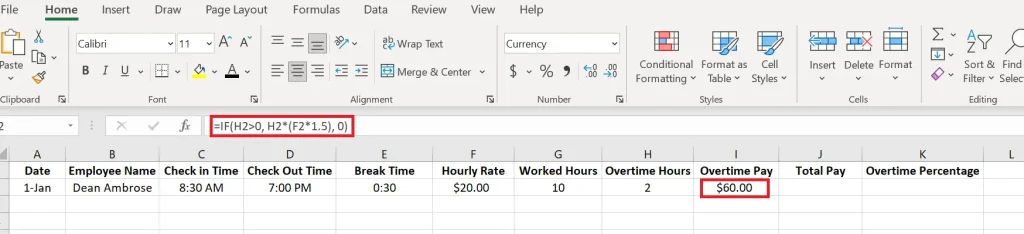
To calculate Time and a Half (1.5x) in Excel using the IF function, apply the following formula in the Overtime Pay column: =IF(H2>0, H2*(F2*1.5), 0)
Calculating Double Time in Excel
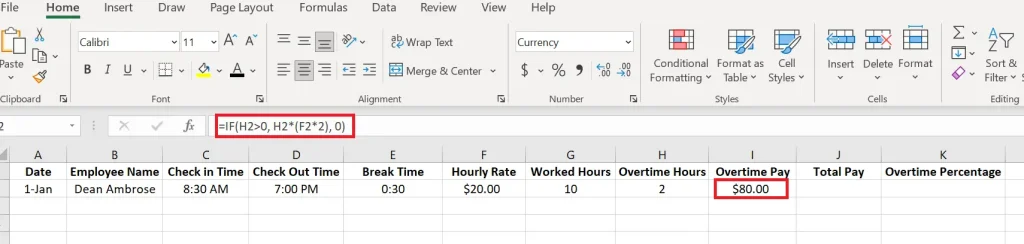
Use the formula =IF(H2>0, H2*(F2*2), 0) in the Overtime Pay section to calculate your total earnings if your organization provides double-time pay.
Calculate Total Pay in Excel
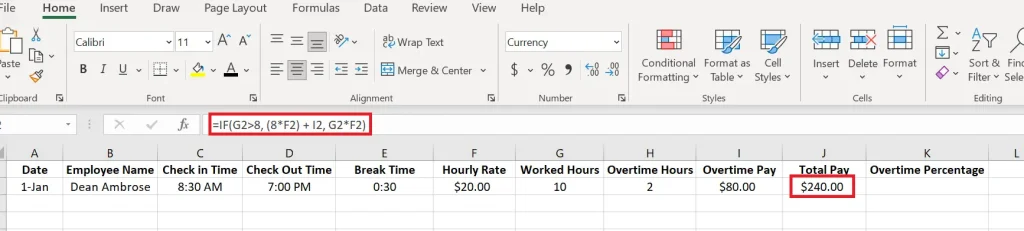
The final step in your payroll process is to combine the regular hours worked with the overtime earnings to find the Total Pay. Use this formula =IF(G2>8, (8*F2) + I2, G2*F2) to calculate the total pay in USD in one click.
Calculate Overtime Percentage in Excel
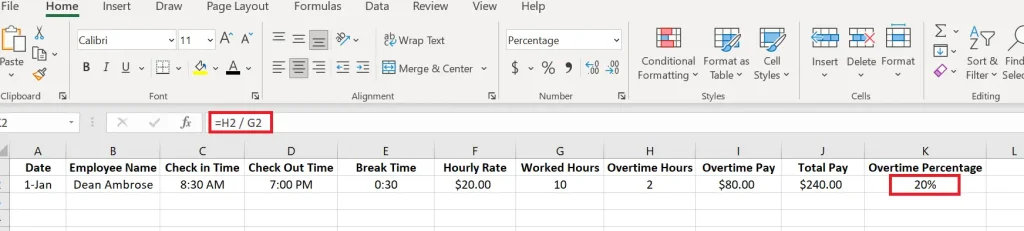
Monitoring the overtime percentage is an essential part of payroll analysis. To calculate this percentage in Excel, use this formula: =H2 / G2
Benefits of Using Excel to Calculate Overtime
Suppose you have only 10 employees in your organisation; in this case, you don’t need to purchase expensive software to manage payroll when you can use an Excel spreadsheet to handle it efficiently. Excel is a highly accessible tool that almost everyone can use, and it is fully customizable, meaning you can easily edit it to your specific needs. Most importantly, Excel can be a free solution for small businesses.
However, it is important to consider that using an overtime calculator is always better for a seamless experience and error-free calculations.
People Also Ask
Let’s suppose your total hours are in cell G2, use this formula =IF(G2>8, G2-8, 0) to calculate overtime after 8 hours in column H2.
In other words, you need to calculate your Total Pay by combining your base pay and overtime pay.
Formula: =IF(G2 > 8, (8 * F2) + I2, G2 * F2)
Calculating a shift differential is necessary when employees earn a premium for working specific hours, such as night or weekend shifts.
For a flat-rate differential of $2, use the formula:
Formula: =IF(G2 > 8, (8 * (F2 + 2)) + (H2 * ((F2 + 2) * 1.5)), G2 * (F2 + 2))