How to Calculate Overtime and Pay in Google Sheets
Small business owners and startups do not need to spend on expensive payroll software. Because Google Sheets is a tool we already use daily, it can be an efficient way to calculate overtime, ‘time and a half,’ and total pay in Google Sheets by using simple and effective formulas. In this article, we’ll explore every step of the overall process in detail.
Set Up Your Google Sheet First
For a professional and detailed setup, create a Google Sheet and add the following 10 headings across your columns:
- Date
- Employee Name
- Punch In Time
- Punch Out Time
- Break Time
- Normal Hourly Pay
- Total Hours Worked
- Overtime Hours
- Overtime Pay
- Total Pay
- Overtime Percentage
You can customize this sheet according to your specific data and needs. Keep every figure properly placed to get accurate results. This concludes the manual data entry portion; from this point forward, you simply need to apply the formulas to get your results.
Example:
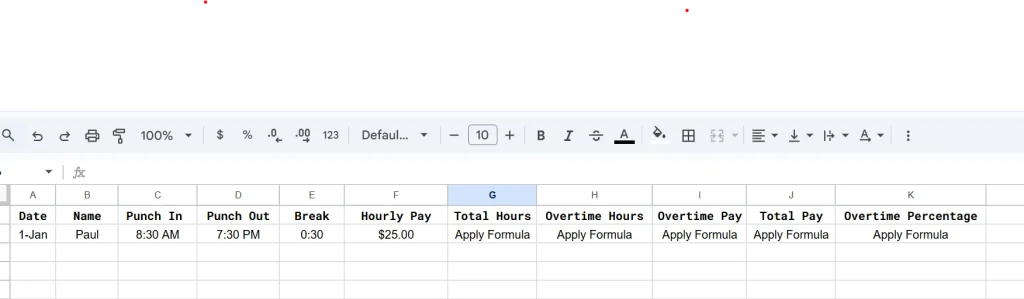
Suppose Paul checks in at 8:30 AM and checks out at 7:30 PM. During his working hours, he takes a 30-minute break, and his base hourly pay is $30. Here is what that looks like in Google Sheets:
Calculate Total Worked Hours
To calculate the total hours an employee worked in a day using google sheet, use this simple formula:
=(D2 – C2) – E2.
Just paste this formula into the total hours section. Following Paul’s example, the Total Hours Worked will be 10:30.

Calculate Overtime Hours
To calculate the overtime hours in Google Sheets, use the following formula:
=MAX(0, G2 – “8:00”)
Simply paste this formula into the overtime hours section. Following Paul’s example, the overtime hours will be 2:30.

Calculate Overtime Pay in Google Sheets
Every organization provides its own specific overtime rates to the employees, which are determined by the agreement between the employer and the employee. But the FLSA (Fair Labor Standards Act) sets the standard overtime rate at 1.5x (time and a half), many companies offer 2x (double time) for work performed on holidays. We are providing the formulas for both scenarios to help you calculate overtime accurately in Google Sheets.
How to Calculate Time and a Half
Paste this formula into the Overtime Pay section to calculate ‘time and a half’ (1.5x):
=H2 * 24 * F2 * 1.5
Following Paul’s example, the overtime pay will be $112.50.

How to Calculate Double Time
If your Overtime Hours are in cell H2 and the Hourly Pay is in cell F2, use the following formula in I2 to calculate double time pay of an employee:
=H2 * 24 * F2 * 2
Following Paul’s example, the overtime pay for double time rate will be $150.

Calculate Total Pay
The final step in your payroll sheet is to combine the employee’s regular earnings with their overtime compensation. This provides the “Gross Pay” amount before taxes or other deductions are applied. Here’s the formula to calculate it:
=(MIN(G2, “8:00”) * 24 * F2) + I2

Find Overtime Percentage
Calculating the overtime percentage is important because it allows an organization to track how much of its total labor cost or total hours is dedicated to overtime. This metric helps managers identify if they are over-relying on overtime and whether they might need to adjust staffing levels. Here is the formula to calculate an employee’s overtime percentage:
=H2 / G2
Based on Paul’s example, the overtime percentage is 23.81%.

Why Use Google Sheets to Calculate Overtime
There are several reasons to use Google Sheets to calculate overtime:
- Google Sheets is a free option, making it a better choice than other software programs that charge a monthly fee.
- Once you set up your formulas in Google Sheets, it will automatically calculate overtime pay, total pay, and overtime percentages.
- Because Google Sheets is cloud-based, multiple people can view and edit the file at the same time without any interruptions.
- You can easily transform your overtime data into clear graphs or charts.